eXPerience 5 embroidery software
Features
eXPerience 5
New Features
Levels
  Text Plus
Text Plus Features
  Operator
Operator features
  Puncher
Puncher features
  Pro
Pro features
Compare levels
Venere Cutting System
System Requirements
What is in the box
Why to buy
FAQ's
Training Videos
my editor
   
Info
News
Links
Events
Wish list


eXPerience 5 embroidery software
   
eXPerience® 5 Features
Wings' XP 5 Box
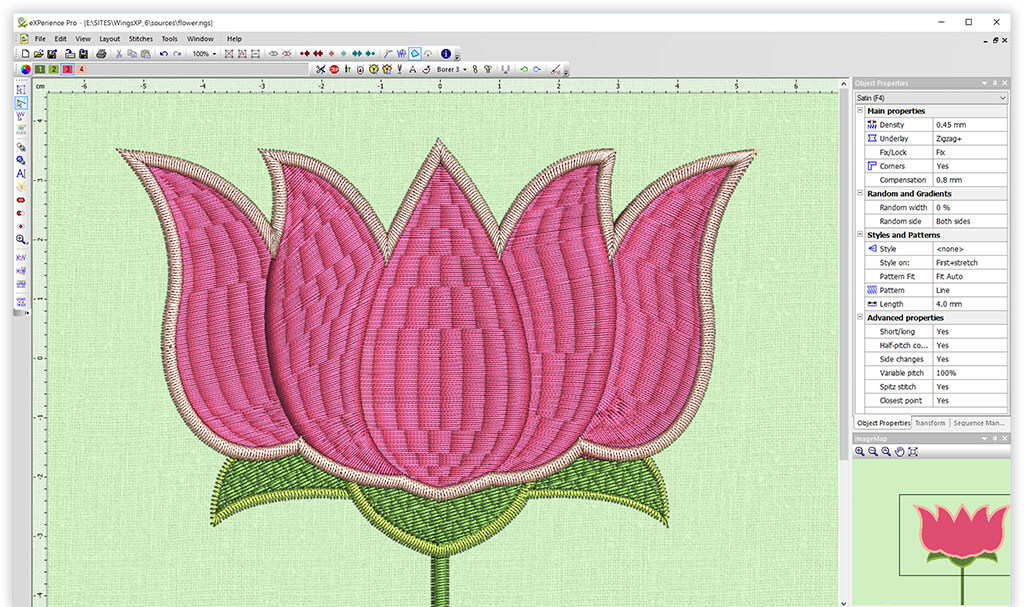
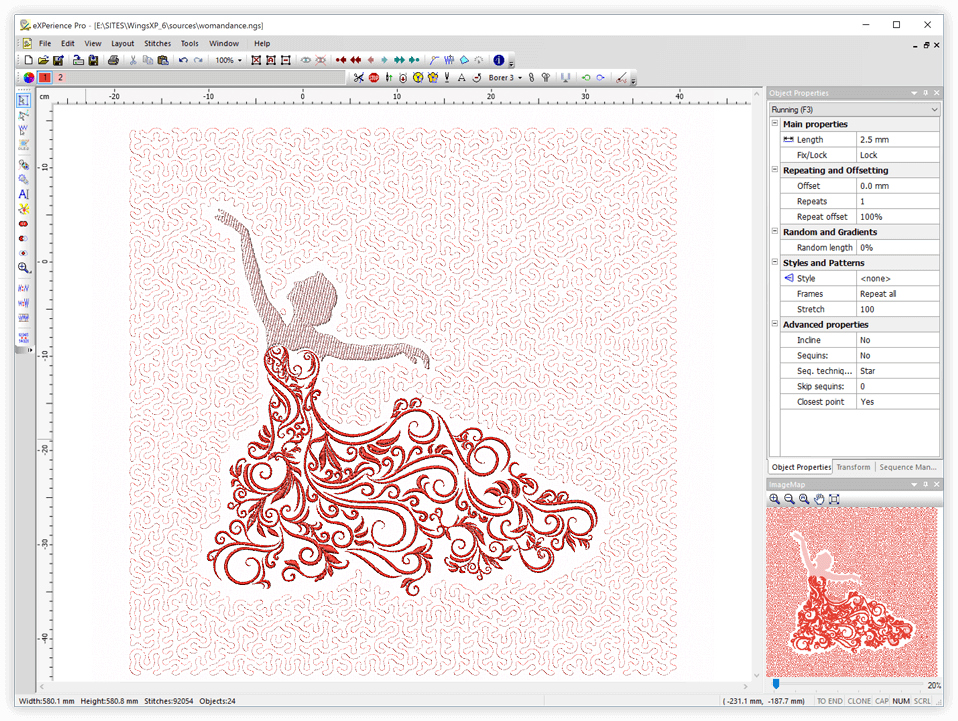
In our eXPerience 5 software, we did our best to create an easy to use and fast software which will help you create your embroidery designs with the best possible quality. eXPerience 5 is the complete professional embroidering package with the best embroidery quality in the market.
 
 
Become member to our member’s area and view demonstration videos of the latest wings XP 5 features.
  Get it now >
What's new
 
New features
   
 
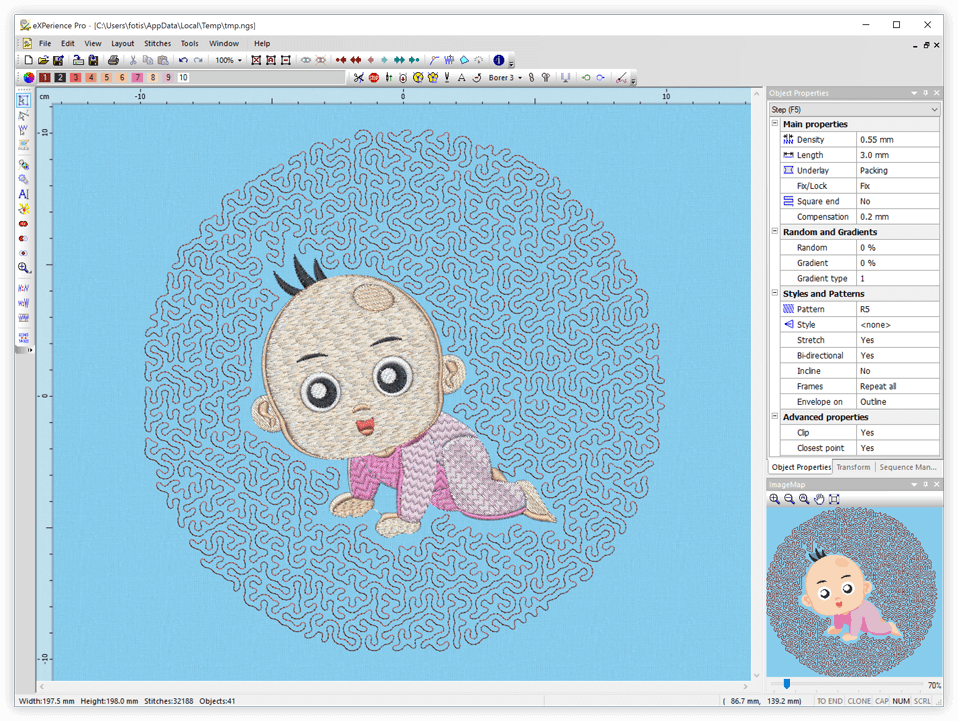
  Now you have the ability to design envelopes manually and give them exactly the shape you want.   99 thread colors in every design.
 

Design your own envelopes and apply them on the shape's outline, on the stitches or on the direction of stitches. This is a very useful tool in the hands of embroidery designers.


Set the number of thread colors you will use when creating a new design or during the creation of the design.

  create manual envepopes  
99 colors
 
  More useful information about sequins and how they are applied were added into the software   Customize the color and the thickness of all inserted outlines according your preferences
 

This is very useful for designs that consist of many different types/colors of sequins


By customizing the color and the thickness of all inserted outlines, you can utilize the advanced 3D workspace and work more efficiently.

  sequins' Info  
Outline colors
 
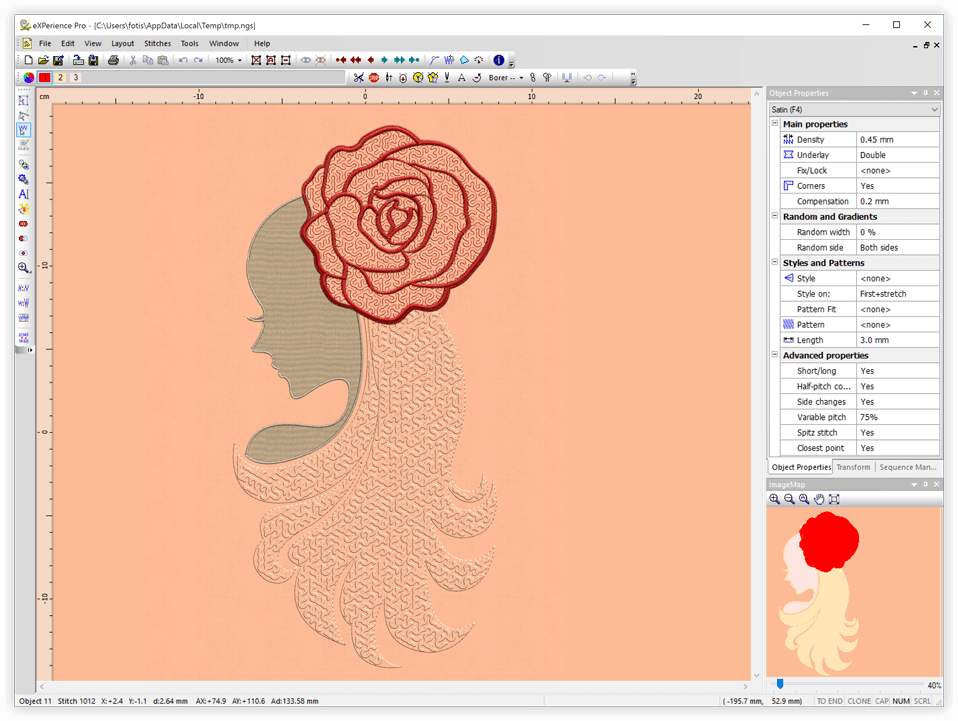
  Produce more realistic 3D effects on your embroidery designs by changing the light source.   Export the 3D realistic embroidery preview to embroidery look image and use it for textile printing or for promoting your work.
 

Users can now easily create a bitmap representation of the final stitch results which can be printed out for proofing, on garments, postcards, and used in various designs.


You can easily create a bitmap representation of the final stitch results which can be printed out for proofing, on garments, postcards, and be used in various designs.

  Set Light Source   Export embroidery image
 
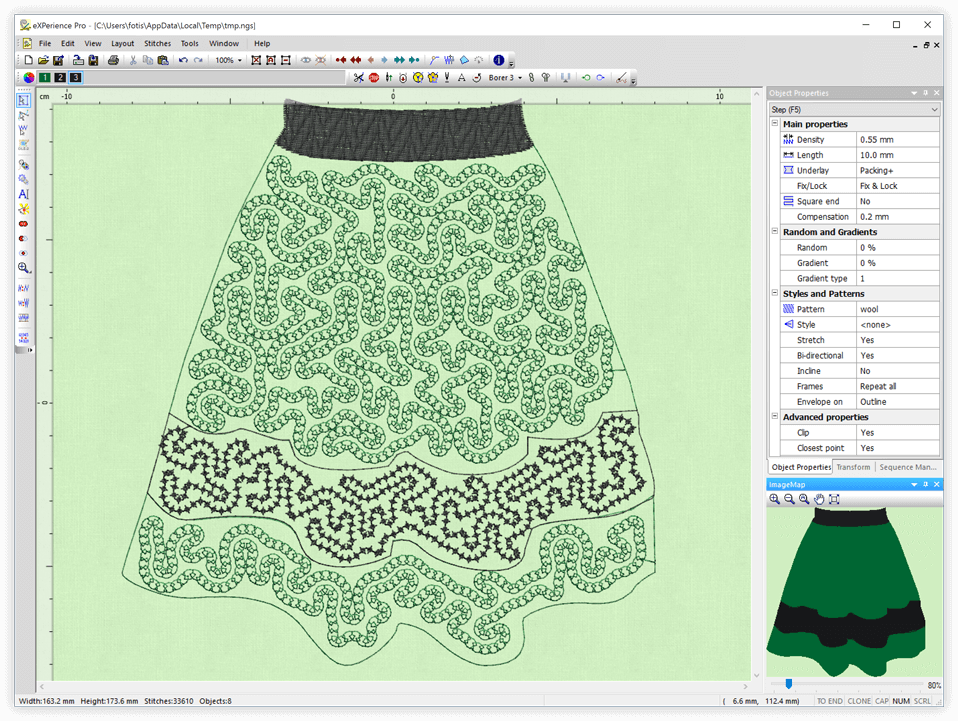
  Now you can change any embroidery object to Venere cutwork object and create beautiful designs that will include cutwork.   Add directions and Divides (to Satin, Zig-Zag and Piping) any time you want and redesign existing objects easily.
 

Give life to your old design by converting any embroidery object to cutwork and allow your machine to do the trimming work. With the Venere knifes you can produce perfect cutwork results easily and quickly.


Change the way your Satin, Zig-zag or Piping objects are embroidered by simply changing their stitch Directions and section Divides.

  Venere Cutwork   Directions and Divides
 
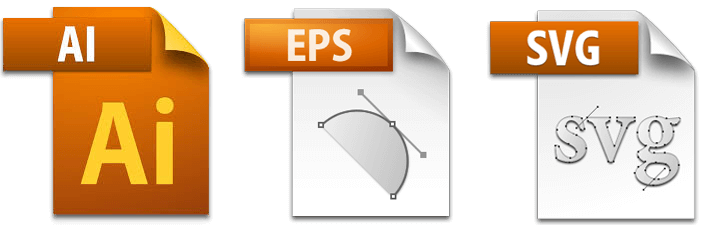
  Support for newer versions of .AI vector file format.   Special support for SWF double sequins while opening existing designs and while creating new ones.
  The importer of .AI vector files has been improved and now you can load newer versions of illustrator files and convert them to stitches.  

A new option is added "Read sequins as SWF's Dual Sequin System" that reads correctly the .dst files that were saved with the SWF macro.

  convert Ai files to stitches   Double sequins SWF
 
  Fully customizable workspace according your preferences. Adjust it once and lose no time while creating embroidery designs.   Turn on/off stitches while you are inside node editor
  You can reposition the toolbars and dockable rollups by click and dragging them. Also at the end of each toolbar you have some options that allow you to select which tools you want to view.  

Turn on/off stitches while you are inside node editor, and visualize how your changes affect the stitches without having to switch back to object editor.

  Customize workspace   Node Editor On Off
 
  View your designs easier by using the Auto Pan functionality of the middle mouse click.   Use the mouse wheel on any tool and make changes quicker and easier
  While you are working in the design area you can use the middle click (click the roller in) and switch to mouse pan mode. By moving the mouse towards the area you want to view, the view port changes smoothly and helps you navigate to your design without having to change zoom level.  

The software recognizes the position of the mouse cursor and uses the roller on the specific tool that you are located.


-
More Features    
-
View Large "more features" video    
-
View feature list    
-
Compare Levels    


Copyright © 2001-2010 Wings Systems Ltd. All rights reserved.